I have come across many occurrences where I have needed to pass data to a websites form via POST, this is simple enough if doing via a browser as all you need to do is duplicate / copy the original form parse it with your default data possibly from a database and a bit of JavaScript code to initiate the form sending process. But what if you want to make it fully automatic via a cronjob? The code I am going to show you simply sends a POST request to the target web server and waits for the response. I have previously used this code to secretly post data to a website process the result and display the output in a different format (so it’s all hidden and the users on the website never know or see the other website). I have written a previous post found here related to the fsockopen function.
The Header String
This is the first bit of data we send to the web server it basically tells the web server the format of our information and any other related data, if we don’t send this the server might refuse the request or return something complexly different. I will go into this section in more detail now.
PHP
1
2
3
4
5
6
7
8
9
10
11
12
13
14
15
16
17
18
19
20
21
22
23
//This tells the web server what version of HTTP protocal we are using
//It also tells it the file we are sending the request to which in this case is /files/post.php which translates to shanerutter.co.uk/files/post.php
$http=“POST /files/post.php HTTP/1.1\r\n”;
//This is the url or IP of whcih the request is coming from
//Tells the server are header request is complete and the rest if content / POST data
$http.=“Connection: close\r\n\r\n”;
//Adds are post data
$http.=$post_data.“\r\n\r\n”;
The Code
PHP
1
2
3
4
5
6
7
8
9
10
11
12
13
14
15
16
17
18
19
20
21
22
23
24
25
26
27
28
29
30
31
32
33
34
<?php
//Variable storing the post data we want to send. Starts with the post field name then its content followed by a & if there is another to come after it.
$post_data=‘name=bob&age=12&county=uk’;
//Initiates a connection to example.com using port 80 with a timeout of 15 seconds.
PHP has built in functions allowing your scripts to communicate with various other applications and services via a socket connection, this opens new and exciting possibilities for us PHP programmers. You might be asking yourself why? With this ability we can query mail servers, get website content whilst also providing POST and GET data, query a DNS server these socket connections are almost unlimited you can connect to virtually any host or port number and use various transport technologies such as TCP, UDP, HTTP, HTTPS, SSL, TLS this allows for a wide range or usages, it wouldn’t surprise me if you could connect to a FTP or SSH server but I have never tried this.
The main uses and real live implementations I have used with this technology were to query a web server whilst providing some POST data and retrieving the response for processing. I have also managed to get a script working which allows you to run multiple occurrences of the same script using your web servers built in multithreading technology (but each thread/occurrence of your script will process a different section of data speeding up long processes) but I will go into this in another post shortly.
Here is an example section of code which will connect to 127.0.0.1 using port 13, the communication will be performed using UDP packets (we know this due to the udp:// at the beginning of the host address, if this is not set it defaults to HTTP). Any error numbers or messages are stored into the 2 optional variables $errno and $errstr which can be used later in are scripts to determine what to do.
Basically the following script queries the date/time service on your own computer or server for the time then displays the response. The following is ok if you know you will get an instant response, but if we are communicating with other services such as a website where multiple lines of data are returned we need to use the following code to get the full output.
PHP
1
2
3
while(!feof($fp)){
echofgets($fp,128);
}
What this does is loops through the complete response and each time displays the next line, until the response has been looped through completely. If you don’t need to wait for the response and only need to initiate the communication then you can remove the while loops and fread commands. This will cause your script to start the communication and then it will just continue with the rest of the script, for example I want to load a website page 20 times which takes 10 seconds each to complete. That would give my script a running time of more than 200 seconds if it was to wait for each response. Now I remove the while and fread commands and now my script only takes 2 seconds to run but still initiates the other website pages (it completes faster due to not waiting for the response from each page, but the web server which handles these websites still finishes processing the request which my script made even through nothing will ever process the response).
PHP works straight out of the box with a default configuration setup specified by the PHP group which is quite restrictive; it is common for developers and server administrators to adjust the PHP settings to enable PHP applications to run smoothly or successfully. The PHP configuration settings are in a file called php.ini, the location of this file differs from each web server setup and operating system. To find out you can create a php file with the following code to view all the details about the PHP installation.
PHP
1
2
3
<?php
phpinfo();
?>
The loaded php.ini file can be found by looking through the data which is outputted from above PHP function, you are looking for the following two fields (Configuration File Path and Loaded Configuration File) usually located near the top of the list. If the loaded configuration file is none then PHP was unable to find a configuration file and so has reverted to the default PHP settings, to adjust the settings we need to create a php.ini in the location it is looking PHP comes with two standard php.ini files one for development and the other for production, all we need to do is rename the file we want to use to php.ini and then adjust the required settings.
Here is a link to the official PHP website manual for this file http://php.net/manual/en/ini.core.php this is a massive list of all the possible settings and there default value. Normally a setting not specified will revert to the default.
Important Information
Shared hosts have limits in place and my not allow you to directly modify the PHP configuration this depends entirely on the host and different server setups may or may not allow you to modify this file. If it is not possible to adjust the PHP configuration directly there are alternatives such as htaccess files and PHP built in method. I have written this post to tell you how to adjust your settings using alternative methods and why your hosts won’t allow you modify this file directly.
Common Changes
Your most common changes will be related to the execution times and script resource usage which if not changed cause allot of scripts which either allow uploading, image handling or large execution times to end prematurely. This is my recommendation of common changes and if you believe I have missed anything please post a comment.
This is the maximum amount of time a PHP script can run before automaticly being killed and recieveing a timeout error message. The default is 30 seconds which is suitable for most websites but it is quite common for a script to need to run longer due to file uploading.
This is how much memory a individual PHP script can use at once, normally the default setting is adequate but if you are handling images, file uploads and large amounts of data (database or files) this setting will need adjusted. PHP will give you a error message tell you that the memory usage it to high.
This is the maximum size which PHP will allow for post data, normally this setting is ok by default but if you are uploading files or sending large amounts of data via POST you may need to increase this setting. Remember this is the total post size not individual post elements, meaning if you upload a 8MB file and a large string content which is 1MB the total post will be 9MB.
As well as having the max post setting above there is also a limit on the max file size which can be uploaded via PHP, this setting is per file so if your script uploads multiple files you should be ok as long as each file is below this limit. You must remember to adjust the other settings above to be able to successfully upload large files or compensate for slow internet connections (which will require your script to wait longer for successfully upload).
This is the maximum time a PHP script will spend processing data received via POST and will need adjusting if large amounts of data is being transferred.
sendmail_path
This is the default PHP setting for Linux servers it specifies the mail path used by PHPs mail() function. This will only work under Linux and must be commented and the two settings below used for Windows.
SMTP
This is used to tell PHPs mail() function which SMTP server to use to send emails, this is only required on Windows servers and the setting above should be used for Linux servers. Due to PHP lacking the ability to use authentication you need to specify a SMTP server which will allow usage without authentication, most good SMTP servers have the ability to allow unauthorised connections internally.
sendmail_from
This is the from email address which will be used when sending an email via PHPs mail() function, this setting is only required to be set on Windows servers and will cause errors if not set.
PHP has various configurable options to enable, disable or limit specific features. Most of the PHP related problems a web developer comes into is due to these limits especially if developing for multiple servers as each server will be configured differently. This is a common problem with shared hosts as you do not have the ability to adjust the PHP configuration directly leaving the developer having to adjust their code to work around the server’s limits or abandoning their host.
PHP.INI This is the main file in which all the PHP settings are stored, on a shared host you will normally not have access to this file and so alternative methods are required to overcome limits.
Why can’t I change settings on a shared host? As the name implies it is a shared host meaning it’s not only your website hosted on that server, by adjusting the PHP settings you could accidently break another person’s website by disabling a module they require or increasing/decreasing a limit they rely on. This would be the main reason shared host providers will not allow you to adjust the PHP settings, the other is security most hosts don’t want to allow a PHP script to run for 60 seconds or more due to server resources such as CPU, memory and internet usage, if the PHP configuration was set to loosely someone could easily modify one of their PHP scripts to crash the web server via an infinity loop.
Work Around? There is various workarounds to overcome these limits the easiest would be if you had access to the php.ini file or managed the server yourself. Some hosts provide features where each of their clients gets a separate php.ini file, this allows the client to customer the PHP settings to their liking and the changes only affect their own websites (some limits may still be in place such as maximum execution time if your settings are too high a global setting will takes its place to stop malicious usage).
.htaccess (Apache) workaround If you don’t know what .htaccess file is then please read this post.
This is a simple method but will not work on all hosts due to restrictions (PHP also has to be installed as a Apache module), for this to work your host needs to give you specific apache privileges which are.
1
AllowOverride Options
or
1
AllowOverride All
You may be able to add either of the following lines to your .htaccess file to manually give yourself the privileges required. The next step is to add the lines of code which will change the PHP settings. The following line is the command we will be using to override the PHP setting.
1
php_value name value
The section called name is the option you wish to change and value is the value you want to change it to, if you are wanting to adjust a setting which has a value of either 0, 1, yes, no then you must use the following line instead.
In the table there is a column called “Changeable” if the value of this column for the setting you wish to change is not either “PHP_INI_ALL” or “PHP_INI_PERDIR” then you will not be able to adjust the setting using this method. Here is an example of my .htaccess file which will increase my max upload file size.
1
2
3
<IfModule mod_php5.c>
php_value upload_max_filesize“100M”
</IfModule>
The following will adjust my upload_max_filesize limit to 100M instead of the default value which is 2M, my options are surrounded by a IF statement which basically checks if PHP5 is in use if so then it runs the command to adjust the settings.
PHP workaround PHP comes with the ability to override some of its predefined settings but just like the other over rights it depends entirely on the setup of the web server and may not work. The overrides for PHP work exactly the same as the .htaccess ones explained above but we use the following command to adjust the settings.
1
ini_set(name,value);
The documentation for this function can be found here, it is used just like any normal line of PHP code here is an example of some PHP code where I have increased the file upload limit to 100M.
PHP
1
2
3
<?php
ini_set(“upload_max_filesize”,“100M”);
?>
A list of all PHP settings is available here but only the settings which have PHP_INI_ALL, PHP_INI_PERDIR or PHP_INI_USER can be changed via the ini_set command.
We have all visited a website as your currently viewing my blog which is a website, when you visit a website you download the files and data required for your web browser to display the desired page. The computer or server which you download a website from will be running some form of web server which is an application used to distribute the required files and code to a web browser requesting them. There is a range of web servers available but in this post I will be talking about the Apache web server and its .htaccess file.
A web server has a range of configurable options but due to every website being different you need a way to specify an option for one but not the other this is where the .htaccess file comes in. It allows you to configure options which will affect only the site it is run from, this file can be used for a range of settings such as configuring apache options (not all options are changeable due to security risks) to setting up redirects and passworded directories.
The .htaccess can be located in the main directory or any sub directory if it is placed in the main directory the settings in this file will normally apply to all files and subdirectories, where as placing it in a folder will normally only apply to that folder and its subdirectories.
Creating the .htaccess file
Creating this file on a Linux operating system is simple and the normal file creation and naming method is suitable, on windows this is a different story as Windows operating systems do not allow you to specify .htaccess as a valid file name, when you create a file on windows you normally have the name of the file and then the file exstension like below.
PHP
1
File.txt
As we need to call are file .htaccess without an extension Windows throws a wobbly and so we have to call the file htaccess and then use the following command prompt to rename the file to .htaccess.
PHP
1
Rename[TARGET][NEW NAME]
So here is an example of me renaming my file which is located on my desktop.
A couple of weeks ago my brother who is very big on computer security asked me if I was able to create him a password generating script, I replied with there are loads already available to which he replies I don’t trust them. As i had some spare time I quickly put together a password generating script and placed it live on my web server, it can be viewed at http://passworded.co.uk/. It’s not the prettiest of websites as it was an quick hour job, it does work but I am planning on creating a better template / theme and adding more features such as the ability to log your generated passwords onto a user account and maybe the ability to add custom passwords (basically a password vault).
This project will slowly be developed I’m not going to be putting much effort into it at the moment but whenever I get some free time it will be spent here.
Recently I have been setting up various Windows server operating systems but have always had the same issue which is how to communicate / manage that server remotely, windows servers by default are managed via the RDC (remote desktop connection) but I want the ability to log into cmd (command prompt), transfer data and port forwarding. FTP isn’t an option due to data being transferred in plain text meaning anyone with the correct knowledge can view everything I’m transferring, this is why I need a secure FTP connection which just happens to be called SFTP, but to do this the remote server I’m connecting to needs a SSH server which windows doesn’t come with or natively support (unlike Linux operating systems which are fully controlled via SSH making life much easier). Below are 4 posts I have already written about SSH and how to use SSH.
Thanks to software developers SSH technology can now be installed on a Windows operating system giving you the full benefits of a SSH server including the ability to access cmd remotely, use SFTP for a secure data transfer and also give you the ability to port forward which we will not be getting into in this post.
There are various software choices available but I have chosen to use freeSSHd as I found it very easy to setup which took about 5 minutes. The installation process is like any other application and all you need to do if follow the installation steps, at the end of installation you will be prompted to create private keys I would recommend click Yes, and then you will be prompted if you want to install freeSSHd as a windows service, this option is entirely up to you but as I want my SSH server to always run and be hidden whilst running I installed it as a windows service.
Server Starting, Stopping and Restarting
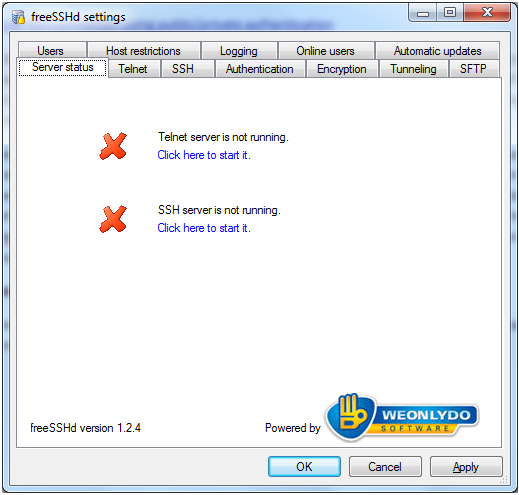
The server is managed via a graphical interface it can be managed via command line as this was the normal method until one of the latest updates added the graphic interface. When you first run the application you will see a screen like this.
If you are running the server as a service it will say the SSH server is not running and this is normal, if you’re not running it as a service and receiving this screen then your SSH server isn’t running. The main difference between running it as a service and a normal program is that the graphic interface has to be running for the server to run if not installed as a service, starting, stopping of the server is also done through the graphical interface.
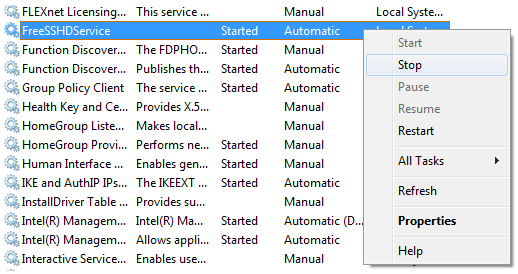
If you’re running as a service then you use the graphical interface to adjust settings but you start, stop and restart the actual SSH server service by going into the Windows Services directory (to apply any new settings changes you must restart the SSH server) which if found by going to.
1
Control Panel–>Administrative Tools–>Services
Find the service in the list it should be called FreeSSHDService and then right click it to see a list of options, remember that when you make a modification to the SSH server settings using the graphical interface you must stop and start the SSH server for the changes to take effect.
Basic Configuration
Now we need to do some basic configuration such as setting up account login and home directory, once these have been set the default options for the rest of the settings are suitable for a basic setup, there is some which I would recommend changing but I will talk about them after we setup the login and home directory.
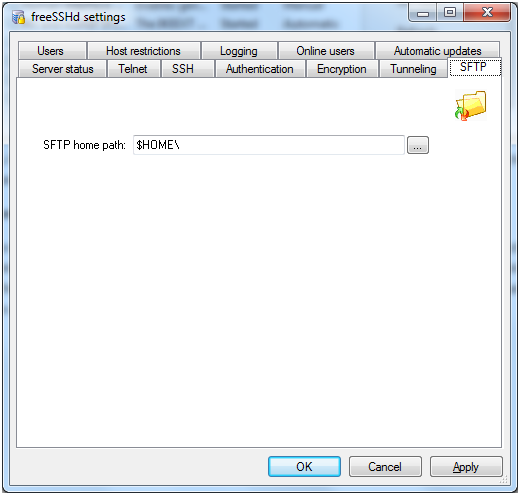
First we need to go to the SFTP tab; this is where we set the home directory which is the directory you will see when you login through SFTP. Due to only being able to set one directory for all SFTP logins I came across a problem when I wanted to share multiple folders and drives, please read further down where I will explain how I managed to share multiple folders and drives.
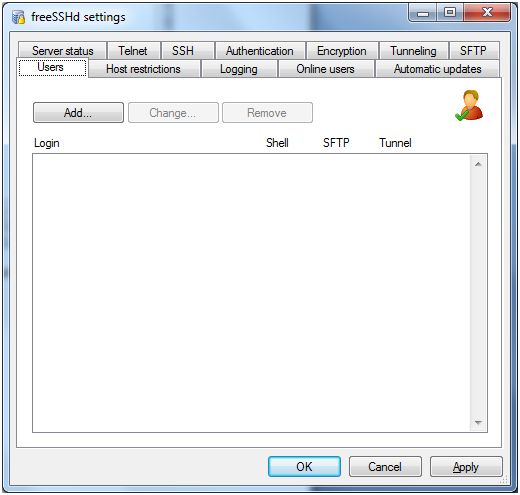
Now that the SFTP directory has been set all we need to do is create the actual user or users we want to login with, this is done by going to the Users tab.
A list of all the current users will be shown by default but as I have just installed the software there is currently no users, this is also where you can modify and remove users as well as add which I am going to do now.
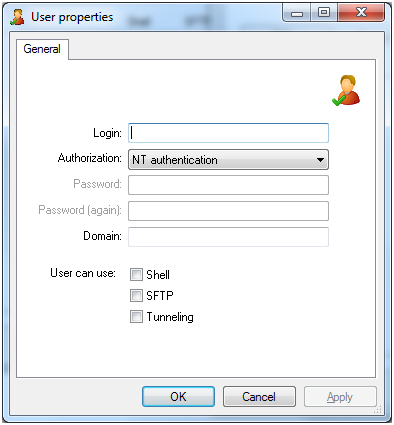
The user creation process is simple you simply click the Add button and the following window above will show, you then simply enter the desired username into the Login text field and select the authorization method from the drop down box, there are 3 options.
NT authentication Uses the current Windows account already created on the system for authentication, you simply just have to specify the user’s username in the Login text field and it will use the Windows password during login.
Password stored as SHA1 hash If you don’t want to use the Windows account for login then you can provide a username and password by choosing this option, this is the option I have chosen as I don’t want to create separate Windows logins for each user who needs SSH access.
Public Key (SSH only) Public keys is another login method which is probably the most secure, here is a blog post I have already written about public and private key authentication. SSH Password v Public/Private Key Authentication.
Now that we have selected a username, password and authentication method all we need to do is specify what access rights the user has, Shell is the ability to login using a SSH client like PuTTy to gain access to command prompt. SFTP is the same as FTP but secure/encrypted and tunnelling is the ability to forward port traffic from the computer the SSH client is on to the SSH server (this is also known as port forwarding and should only be allowed for trusted users).
Advanced Features
These features are fine by default but I would recommend adjusting most of them to help increase security and so that it runs exactly how you want it to. Remember this SSH server allows people to gain access to your files via SFTP and SSH allows access to command prompt where alot of damage can be done.
SSH Settings
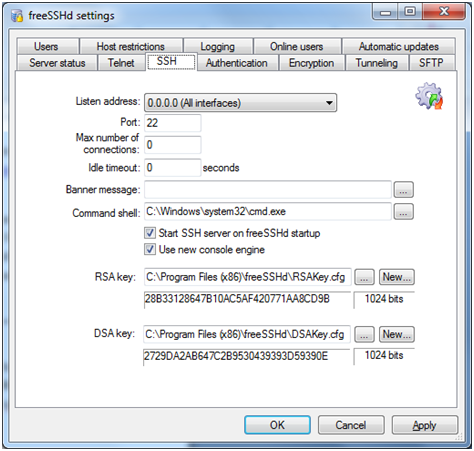
This is where all the main SSH settings are configured in relation to the actual SSH server, the listening address and port number is the actual IP address and port the server will listen for communication data. We can also limit the max connections and idle timeout so that people can’t stay logged in forever. You can set a custom message in the banner message text field which will display to the user once they login, the command shell is the actual application which the user will see when logging into SSH. The RSA and DSA key are used during public and private key authentication, if these keys where to get lost or compromised this is where you can generate new ones so that the old ones no longer work.
Host restrictions These options allow you to provide a list of IP addresses and IP address ranges, you can either allow or refuse this list of addresses. If you are always going to be connecting from a single or group of IP addresses its best to limit the SSH server to only allow connections from the IP addresses which you will be using, this will limit the chance of unauthorised login.
Logging Keeping a log is very important as your able to back track who has logged in what they did, this is very important as you can get the IP addresses of any potential attacks and block them either via the host restrictions or firewall.
Online Users This simple just allows you to see who is currently logged on, if you have installed the server as a services this will now show you if any users are logged in.
Automatic Updates I would always recommend keeping up-to-date especially with security issues always arising, if you are planning on having this SSH server running all the time I wouldn’t use the auto update feature as if something goes wrong you may not be able to gain access to your server again.
Authentication SSH servers support two types of authentication password and public key authentication, this section allows you to specify what types of authentication your SSH server will accept. I have written various articles related to SSH which can be found here.
Encryption
All traffic is encrypted including whilst logging in, multiple encryption methods are supported but unless you have a reason for using a specific type this option should just be set to auto.
Tunnelling
SSH servers also have the ability to use port forwarding which allows a user to transfer data going to a specific port on their side to the SSH server, the options here allow you to specify if local port forwarding and remote port forwarding is allowed. Local forwarding is when you transfer data on a port from your local machine to the SSH server, remote forwarding is the complete opposite where you direct a port on the SSH server your local machine.
Just thought I would let you all know how my holiday in Scotland is going and that as soon as I get back I will be creating more posts. Ive already got a bunch of PHP posts I need to write up or finish so be ready for a wave of posts.
Scotland is an amazing place if you love mountains, lochs and waterfalls you have to be willing to put up with sunless days, wind and rain but thats just scottish weather in one. Some of the roads aren’t great and quite dangerous. We are staying in Fort William and the main road which leads into the highlands is literally only big enough to fit two cars down side by side even though this road is being used by trucks, cars, lorries, mobile homes and anything else which goes on a road. You’ve got to be really vigilant to whats coming or a collision could happen easily; we almost has a crash due to a woman deciding she was going to pull into a layby last minute causing the car in front to do an emergency stop and then me. I was literally 1 car length away and ended up about 30cm from hitting the car in front (April, my girlfriend is to scared to go on these types of roads so i have to take over driving).
Just before we left I purchased a Canon 500D DSLR which came with the default lense and a 75-300mm lense due to Jessops having a special offer on. Because April has her own fashion blog and wanted a lense suitable for the pictures she wants, we bought a 50mm 1.8 lense which cost £95 from Jessops which is canons cheapest lense.
Here is some pictures we have taken and a video of a waterfall all taken with the Canon 500D DSLR camera. You can view all the pictures which have been taken from my picture gallery located here.
Well its about time I writen the Windows installation proccess guide this guide will help you install most Microsoft windows operating systems as they all follow the same process, Vista and Windows 7 installation process is much cleaner and simpler to use as it has a step by step walkthrough but this guide will help you progress with your installation.
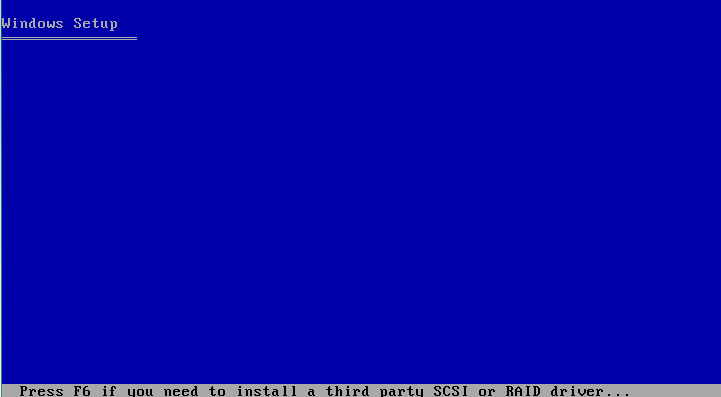
When we first boot from the windows XP disk it needs to loads the files into the computer’s memory so that it can perform all the tasks it needs to do during the installation process, but before the installation we need to setup are hard drive so it’s ready to hold the operating system files and are data.
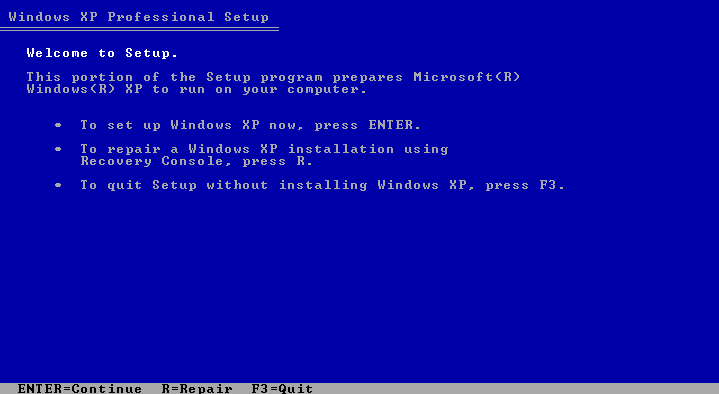
Once the loading has completed you will have a selection of options to chose from, seeing as we are installing a new operating system we are just going to press the Enter key, if you ever had an issue with your installation you can also access the recovery console by pressing R but this is for users who known what they are doing and is not covered in this post.
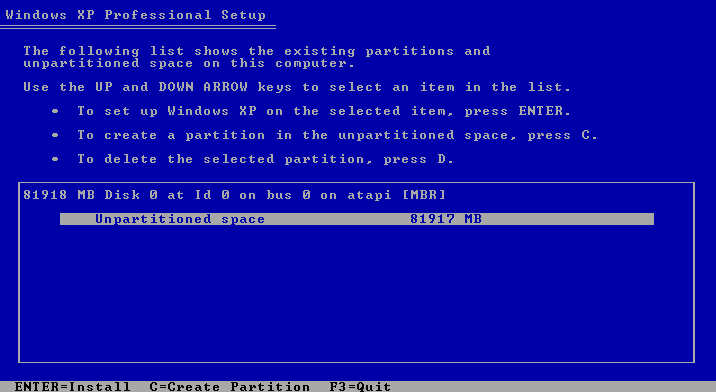
Now we need to setup the partitions on the hard drive seeing as I am using a new hard drive I have no partitions and it just shows as unpartitioned space, I am going to create a partition using all the available space and install Windows on that partition so I’m just going to press Enter, you can do the same but please make sure you select the correct partition if you have multiple partitions (it will be the one which says Windows or something along those lines), you can create multiple partitions here if you wish by pressing C then entering how much space that partition will be allocated, pressing D will delete a partition and once you have created all your partitions select the one you wish to install Windows on and press Enter.
A partition is a unique section on the hard drive which isn’t affected by other partitions, meaning if you install Windows on 1 partition and store all your files on another you can reinstall Windows and your other partitions and data will remain exactly how they were left (window shows each partition as a separate hard drive).
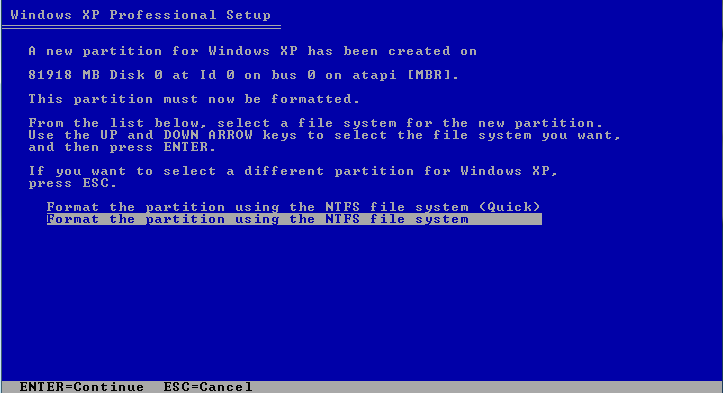
The last question in this stage of installation is how you would like to format the partition which can either be done using a slow or fast formatting process, I generally use the slow method as it guarantees no errors or problems and make it harder to recover the old data. Using the quick method is allot quicker though and depends if you have the patience to wait.
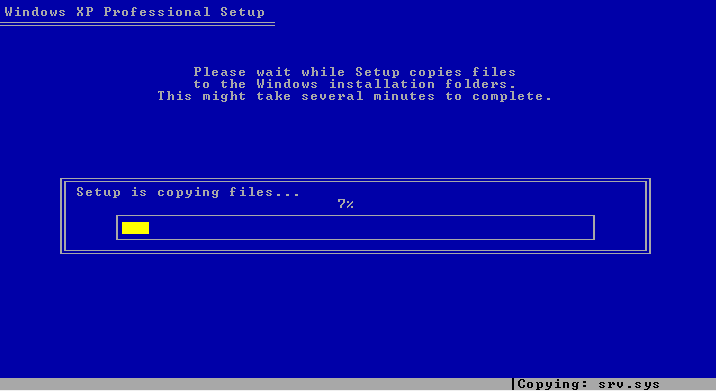
It will now format the hard drive and then go straight on to the coping process which is moving all the installation files from the CD/DVD to the hard drive to help speed up the installation process. Once it has completed it will automatically restart the computer and the installation process will boot up.
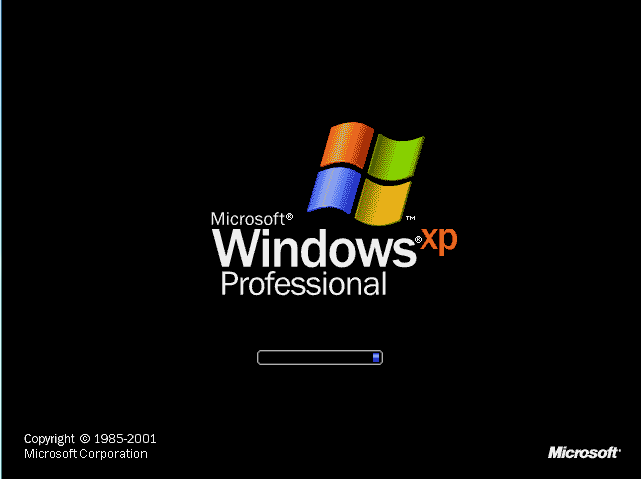
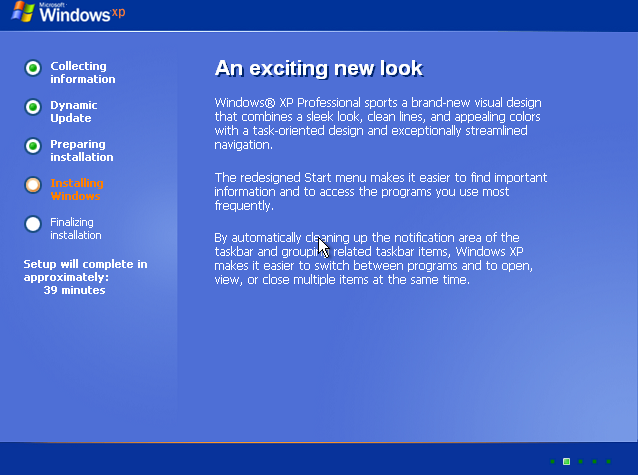
If you receive a screen like below this is correct and it will then go to the installation process.
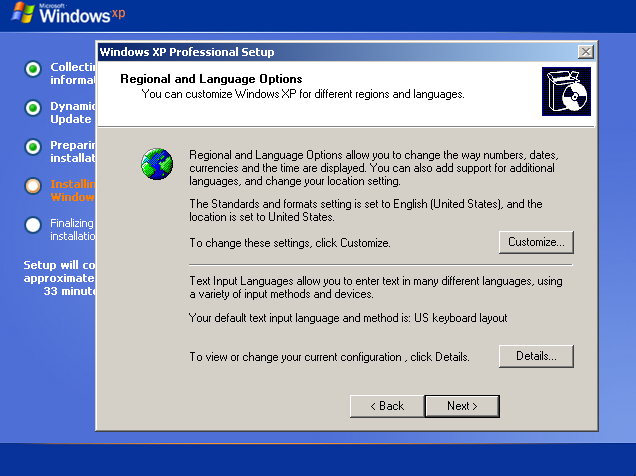
The installation will go through numerous steps installing all the main system files and drivers and you will be prompted 2 or 3 times through the installation process, you can leave it installing and just return every now and again to see if it’s waiting for your response.
The screenshot below is the first prompt you will receive and all you have to do is specify the language and keyboard layout. Without specifying your correct keyboard layout some of your keys may not work I life in United Kingdom and the default for Windows is United States, if I was to leave it some of my symbol keys would output incorrect symbols for my keyboard.
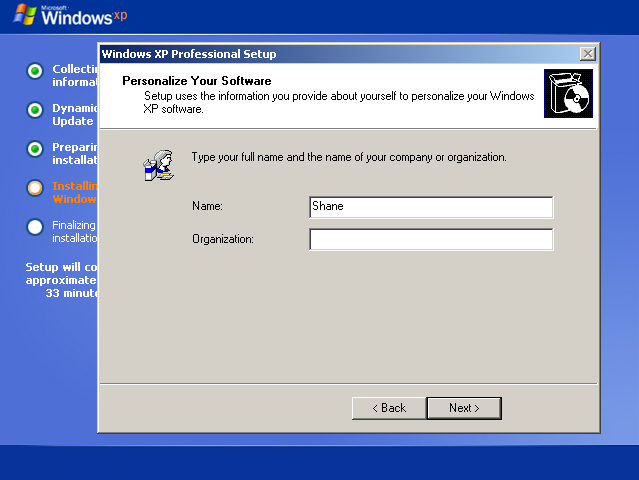
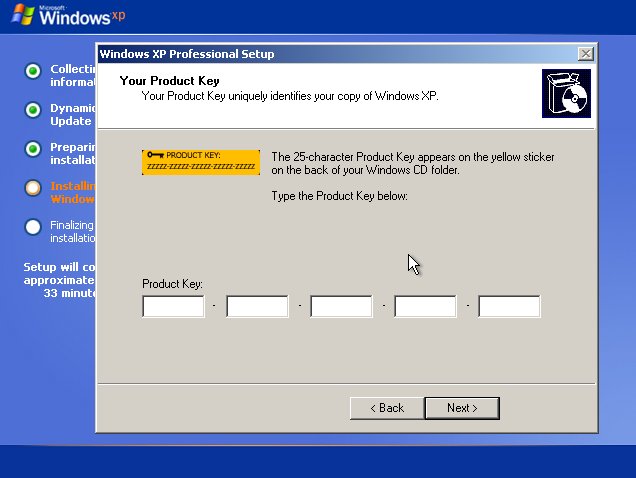
Your next prompt is to enter the name of the system administrator (owner) and the CD key for installation. This process will not activate your CD key but a valid CD key must be provided.
Your CD key can be found in many locations if you purchased your computer with the operating system already pre-installed your CD key will be located on a sticker on the side or back of the computer case, if it’s a laptop it is normally on the bottom of the laptop and if it’s from a shop it will be found inside the box.
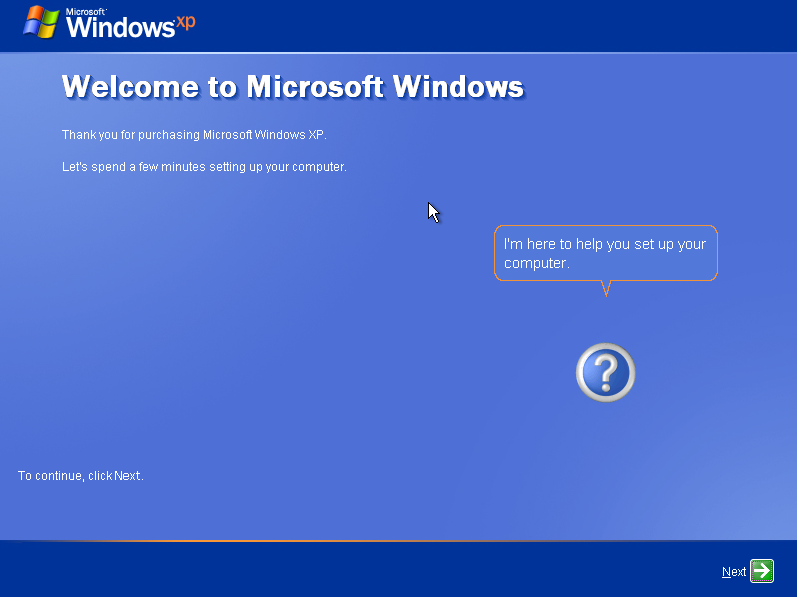
You will receive a couple of other prompts such as selecting a name for the computer (can be anything) and network settings (normally just select Typical Settings). Once the installation is complete it will automatically restart again and this time boot into your Windows operating system. Your installation is now complete and all you need to do is complete the wizard which will load after completion your desktop will show.
An operating system is the main software component of a computer it controls all the hardware and makes everything work; there are various operating systems available each with different usages and software. The most common is Windows mainly due to their wide usage and most new computers will come with Windows pre installed. I have written a post here about Linux operating systems and I would recommend giving it a read and at least trying a Linux operating system.
I am going to take you through the steps required to start the installation process/wizards for installing an operating system. All systems are different so the content below may not be 100% accurate for your system but it should be simple enough to figure out the alternative method your system uses.
Preparation
For the first step you need to get all your resources including any installation CD keys (if required), a CD/DVD with the desired operating system or another alternative method such as a bootable memory stick.
Memory stick / USB drive
To simply this process you can download some software which will allow you to select the operating systems you wish to install onto your device, this software is great as its simple to use provider’s step by step instructions and allows multiple OS installers on one single device. The software you want is Universal USB Installer there is a version for most operating systems.
CD/DVD If you have downloaded an OS image from the internet then you need to burn the ISO or IMG file onto a disk, this can be accomplished by installing and running CD/DVD burning software such as ImgBurn available here or if you’re using Linux find some alternative software. Burning the image using ImgBurn is relatively easy insert a CD/DVD into the drive and click Write image file to disk browse to the image location and burning will begin; it may popup with some messages about making it a bootable disk click Yes or Use Recommended settings.
Booting
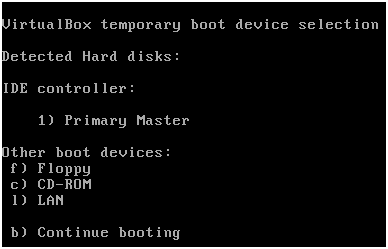
Now it’s time to begin the installation process first insert the CD/DVD into the drive and restart your computer the computer should now boot from the CD/DVD and begin the loading process, if you are trying to install a Windows operating system a message will appear asking you to Press any button to boot from CD you need to do exactly what it says or it will just skip booting from the CD and boot straight from the hard drive (boots to the currently installed operating system). If it fails to boot from the CD/DVD and boots straight from the hard drive we need to manually tell the computer which device to boot from this is achieved on most systems by pressing F12 during the boot up stage, as soon as the computer first starts immediately start pressing the button and you should be presented with a menu like below.
The screen you receive may differ slightly or completely but all you need to do is find the drive you want to boot from which in my case is CD-ROM so I press the “c” key. The bootable media should now beginning loading and now you ready to start installing your new operating system.